
AWS Application Migration Service (Usually CloudEndure Migration or AWS Server Migration Service)
I was trying to apply for a task on upwork about cloudendure and could not find it on AWS service, after some research i realized a new service has been deployed which is more efficient and stress free.
What is AWS MGN
AWS MGN is a highly automated lift-and-shift solution, which works by replicating your on-premises (physical or virtual) or cloud servers into your AWS account.
AWS MGN automatically converts and launches your servers on AWS so you can quickly benefit from the cost savings, productivity, resilience, and agility of the cloud. Once your applications are running on AWS, you can leverage AWS services and capabilities to quickly and easily replatform or refactor those applications.
What are the steps involved?
The key steps of this migration process are:
Create IAM user with programmibility access for AWS Replication Agent.
Attach custom VPC with public or private subnet
Attach security group with correct ports open to your custom IP address or 0.0.0.0/0.
Create the Replication Settings template in the AWS MGN Console
Install the AWS Replication Agents on source servers
Configure the Launch Settings in the AWS MGN console
Launch the test instances
Launch the cutover instances
Finalize cutover
AWS MGN requires network connectivity to and from your on-premises environment and within your Amazon VPC.
You can create more subnet depending on your requirement. In a situation where you have a web server in public subnet and Database in a private subnet, then you have to create two subnet, also route tables and also security groups for public and private subnet.
In this blog. I will be working with a linux server and will perform use public IP for data replication, won’t be doing the private IP for data replication (This requires VPN, DirectConnect or VPC peering)
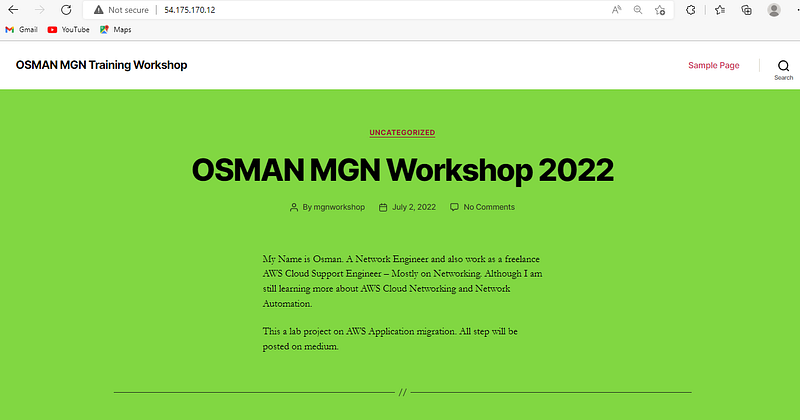
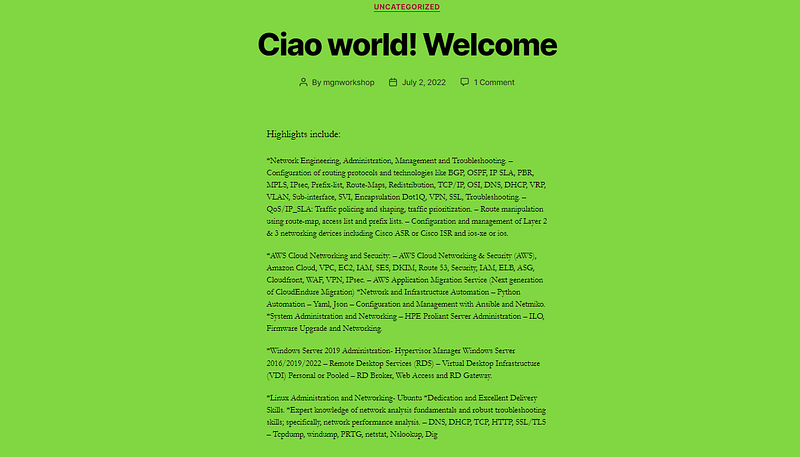
My webserver page.
For this walk-through:
Have an AWS account
Have a clear understanding of Amazon Virtual Private Cloud (Amazon VPC)
Create the virtual networking environment, Amazon VPC.
Create subnets in the MGN VPC.
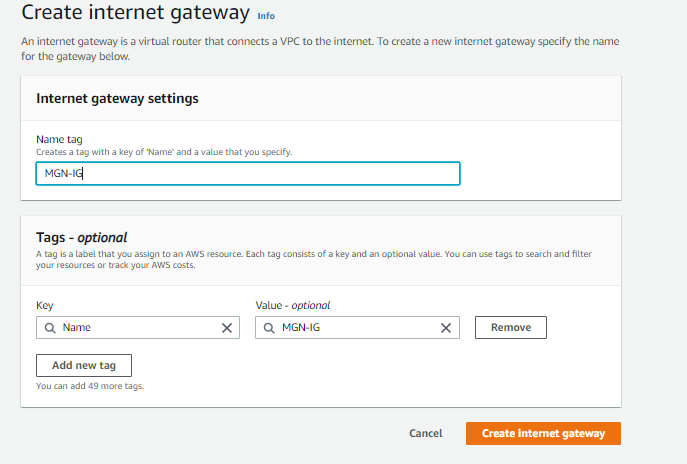
Create Internet gateway and attach it to the MGN VPC.
Create a Route table, Public-MGN Route table.
Add internet route to the Public-MGN Route table (Destination 0.0.0.0/0 with Internet gateway as target).
Associate the Public Subnet with the Public-MGN Route table.
Launch an Amazon Elastic Compute Cloud (Amazon EC2) instance as a Bastion host in the Migrated Resources Public Subnet
Create security group, Public-MGN SG.
Add inbound rules for HTTP and HTTPS ports from anywhere (0.0.0.0/0), and SSH port and RDP port from my public IP address to the Public-MGN SG.
Create IAM user with programmibility access for AWS Replication Agent.
Store the Access Key ID and Secret Access Key, which would be required during the installation of AWS replication agent on source server.
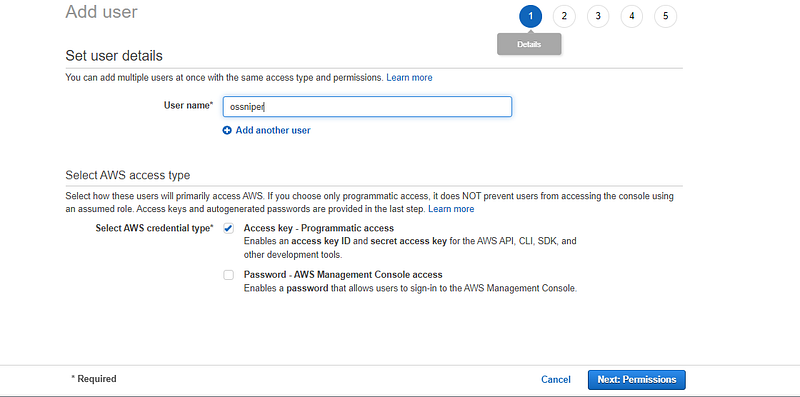
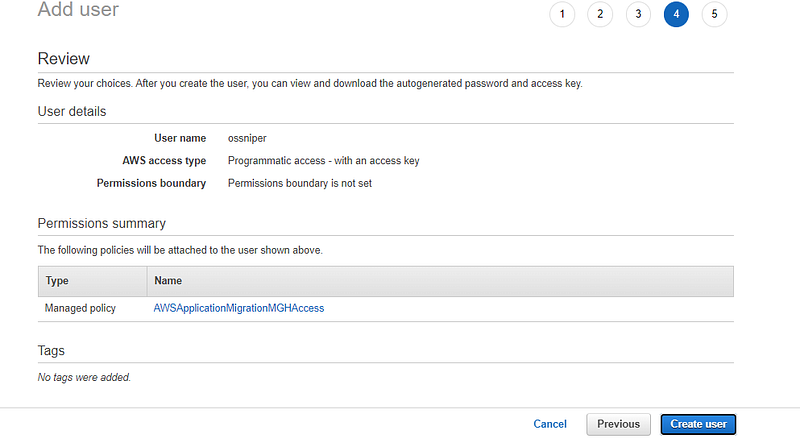
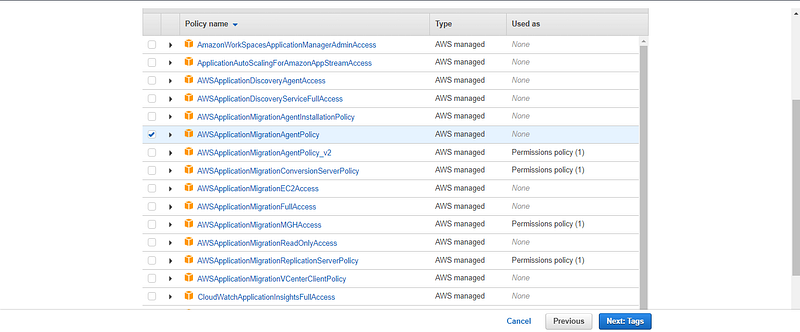
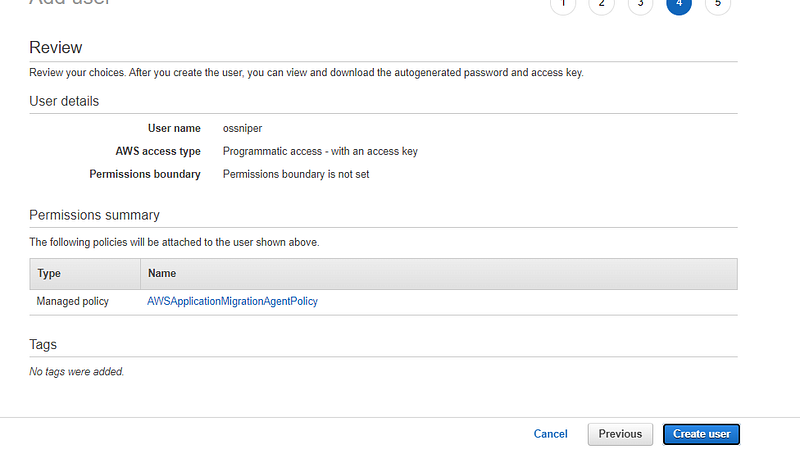
Create user and save the Access Key ID and Secret Access Key
VPC — Virtual Private Cloud is an amazon web service that enable you launch aws resources in a virtual isolated network environment. Hence, providing you with security and flexibility.
AWS Direct Connect is a hybrid connectivity service.
Amazon VPC is a network foundations networking service.
Amazon API Gateway is an application networking service.
AWS Global Accelerator is an edge networking service.
Create the virtual networking environment, Amazon VPC.
Click Services — Then select Networking & Content Delivery — select VPC
Select region as default is North Virgina (us-east-1). I will be using Milan (eu-south-1)
When you create a VPC, a route table is created by default and associated to the VPC.
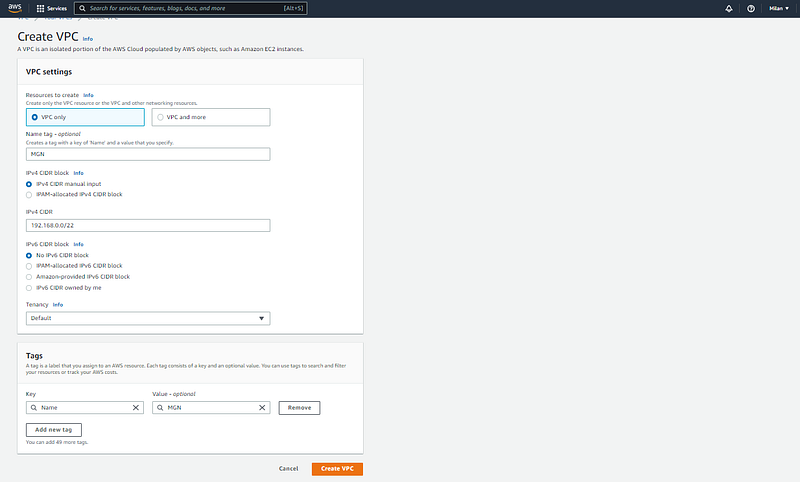
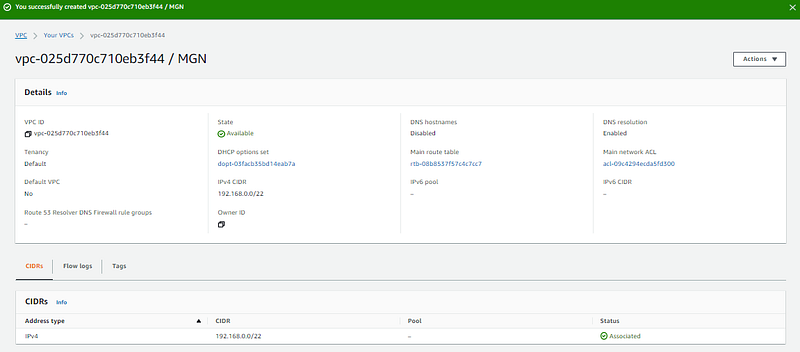
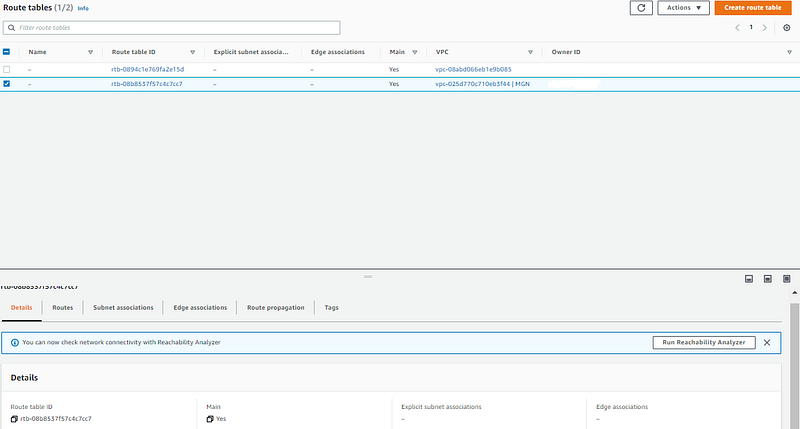
Now will create a subnet and associate with the route table.
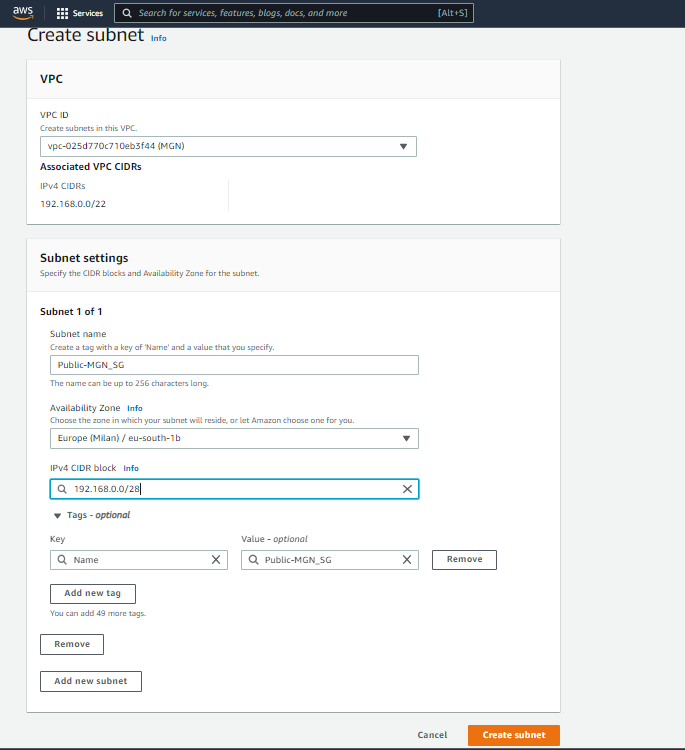
Then we create an internet gateway and attach to the VPC.
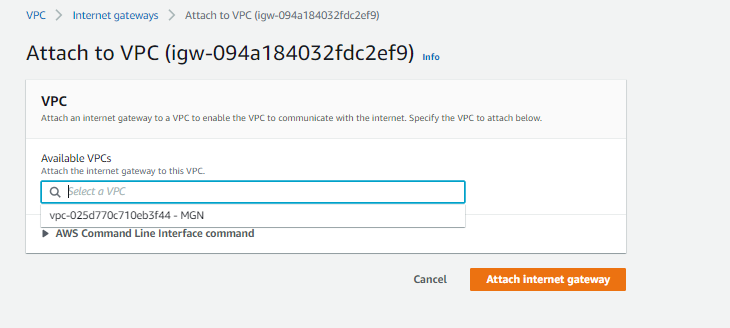
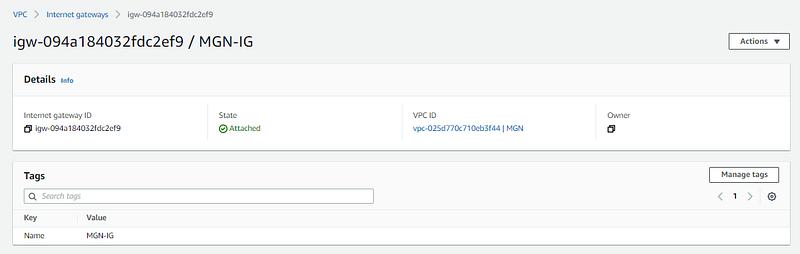
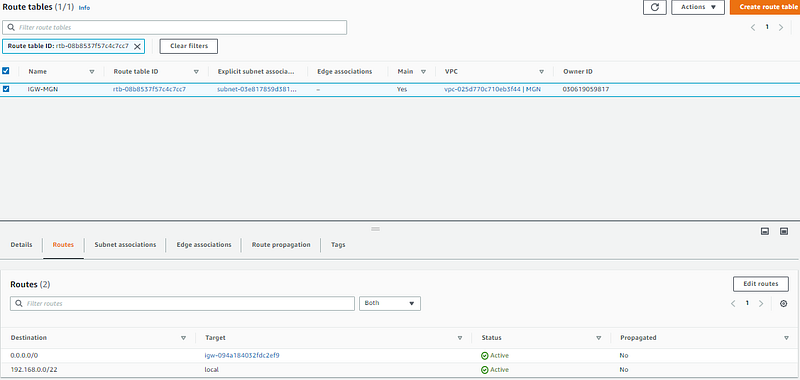
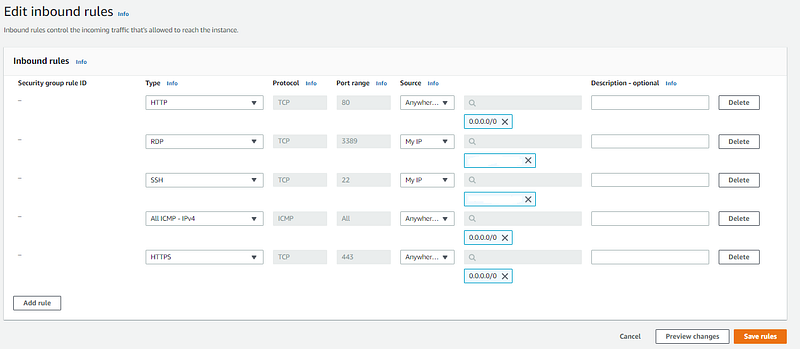
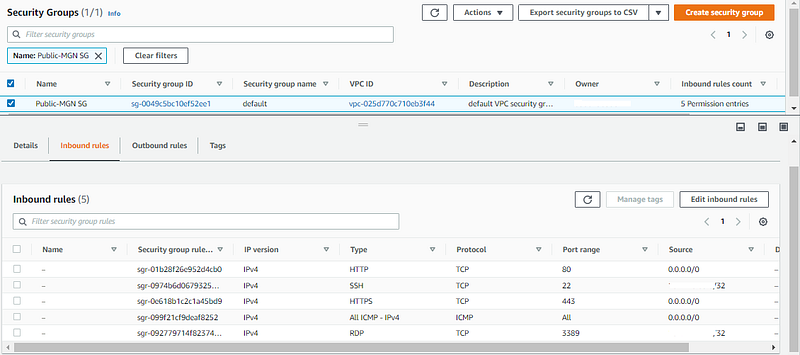
Security group is also created by default when you create a custom VPC, In this task we will name it Public-MGN SG and edit inbound rules.
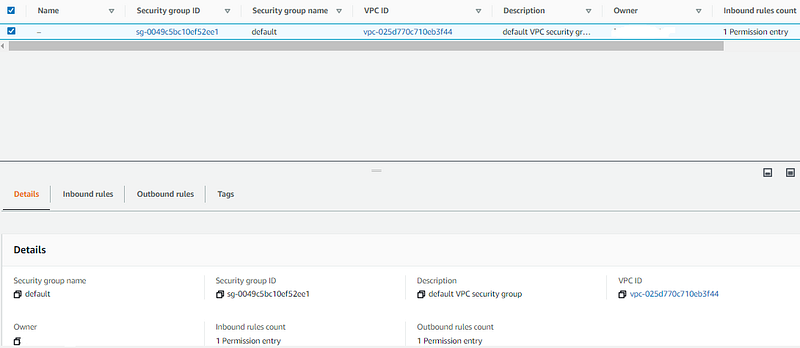
Edit the inbound rules:
Allow HTTP — port 80 — Anywhere — 0.0.0.0/0
Allow HTTPS — port 443 — Anywhere — 0.0.0.0/0
Allow SSH — port 22 — My IP — 12.1.2.3/32 (To access linux server)
Allow RDP — port 3389 — My IP — 12.1.2.3/32 (To access Windows server)
Now we have completed most of the Networking part.
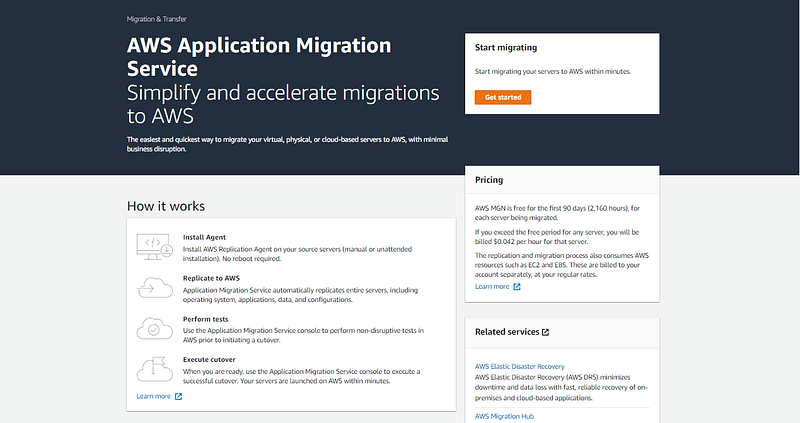
Click Services — Then select Migration & Transfer — select AWS Application Migration Service
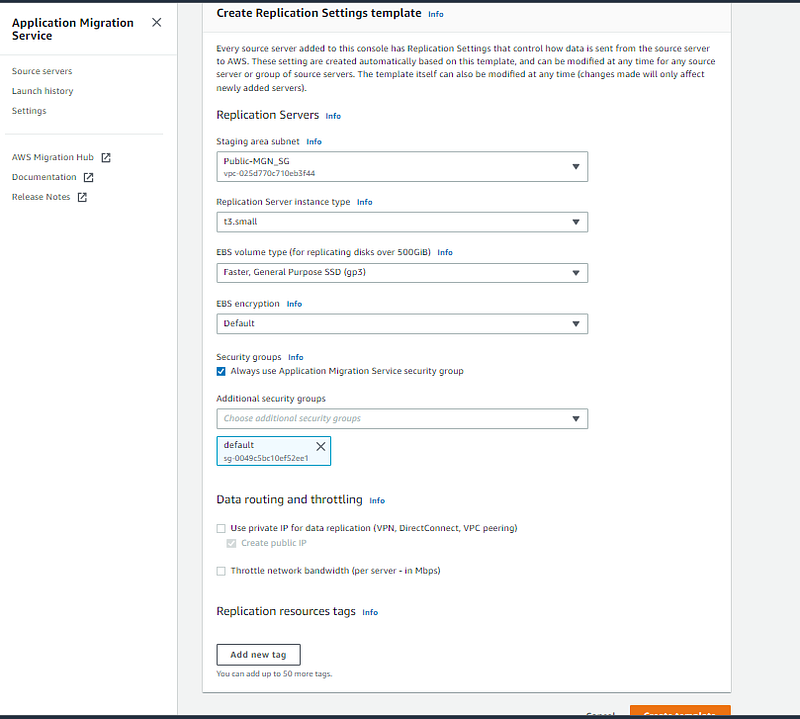
Next Create Replication Settings template.
To migrate your servers from on-premises or another cloud service provider, We have to create replication settings template to initialize the service for the first time in the AWS MGN console. Note: Details can be changed later based on your requirements or resources.
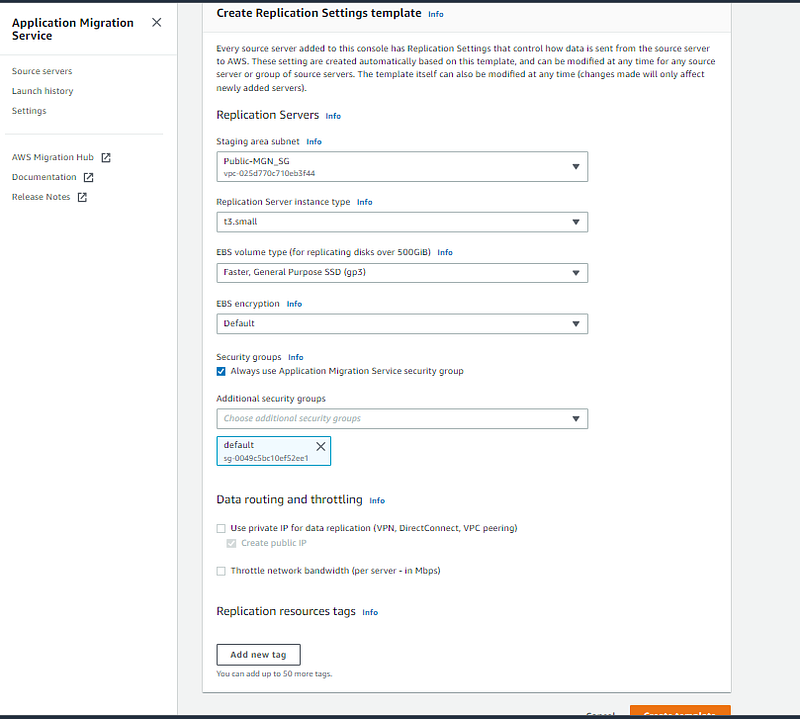
Since this a lab i will be replicating to a t3.small for testing and i have selected the VPC and SG we created.
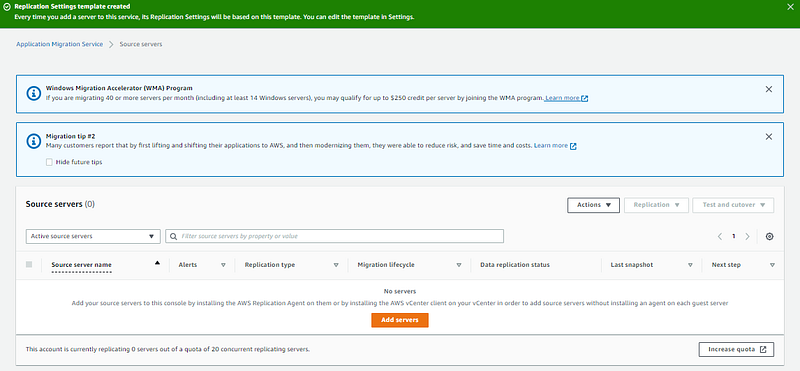
Replication template has been created, now we will click on Add server.
To lift and shift our linux web server from on-premises to AWS cloud and also Install the AWS Replication Agents on source servers
In this task, will select linux and copy the link to download the installer on the linux source server
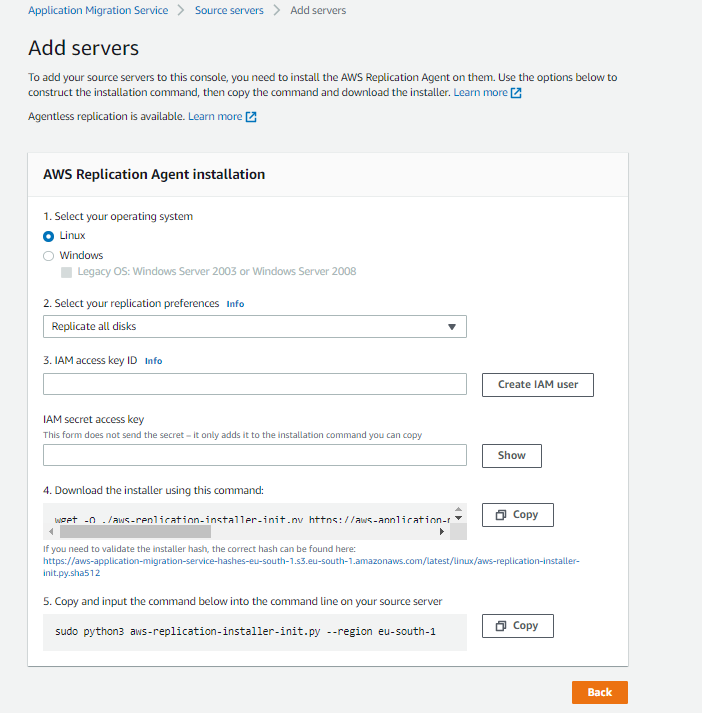
Download AWS Replication Installer
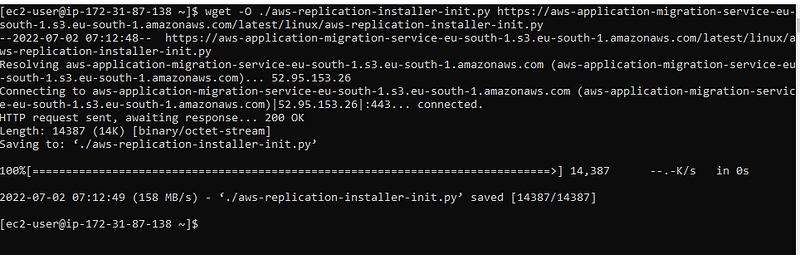
Install and enter your region, Access key and Secret Key for replication.

The Replication Agent will be downloaded and Installed on the Source Server, Then Sync with source server with Application Migration Service in console.

Return to the AWS MGN console to validate the source server in the console
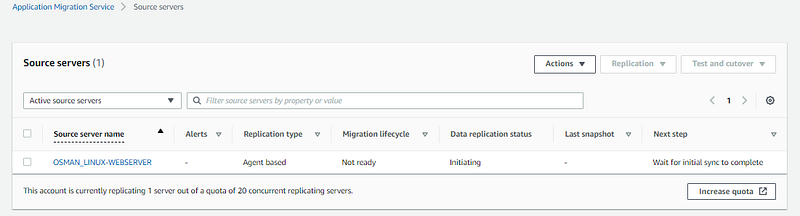
Let’s click on the server and see.
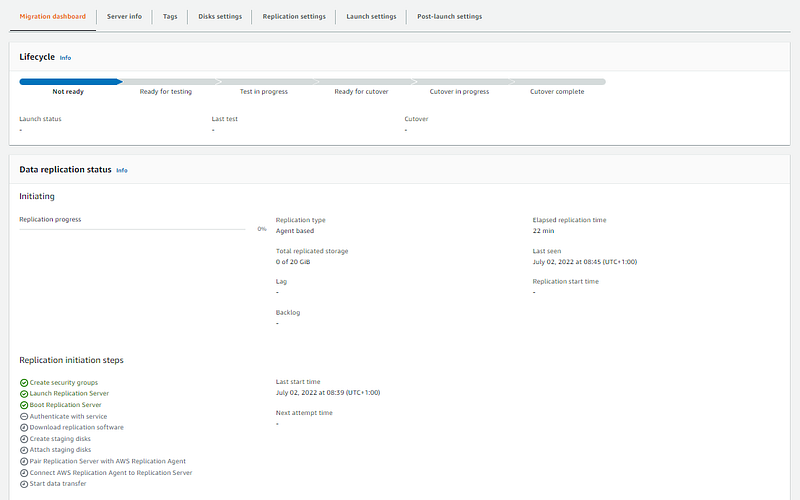
We will wait for some minutes, Replication initiation steps has to be completed and status all green. while the lifecycle should be blue and ready.

Once initial steps and sync is complete, the migration lifecycle displays ready for testing and the data replication status displays Healthy.
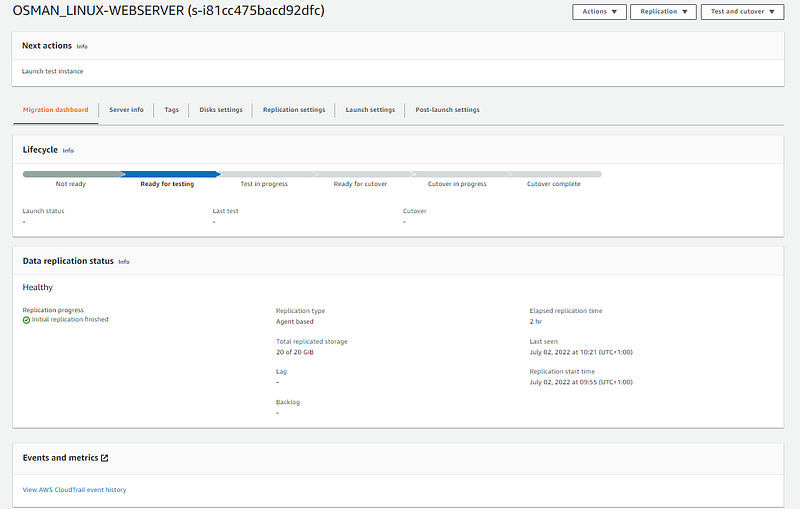
Configure the Launch Settings in the AWS MGN console
The launch settings are set of instructions that determine how a test or cutover instance is launched for each source server in AWS.
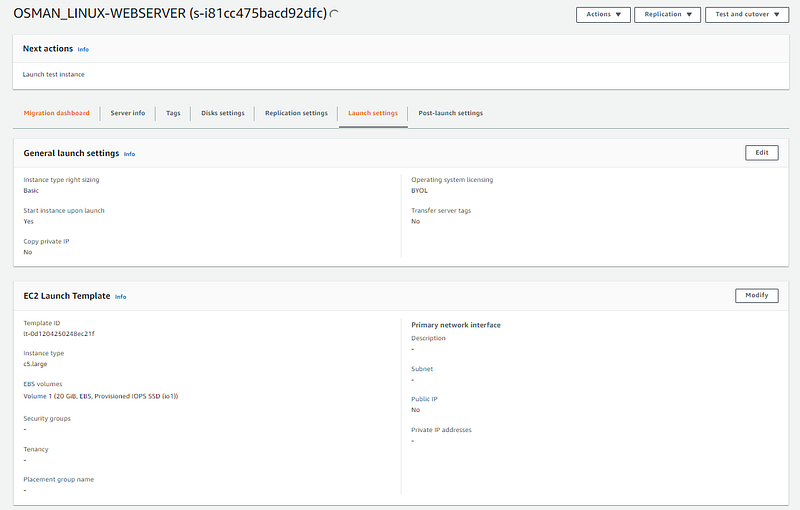
Launch settings are comprised of two sections: general launch settings and Amazon EC2 launch templates.
I will keep the general launch settings. And, but will be making changes to the Amazon EC2 launch template.
For this server, i will modify the launch template.
Note: There are some changes that are not to be tampered with, most time its better to leave default.
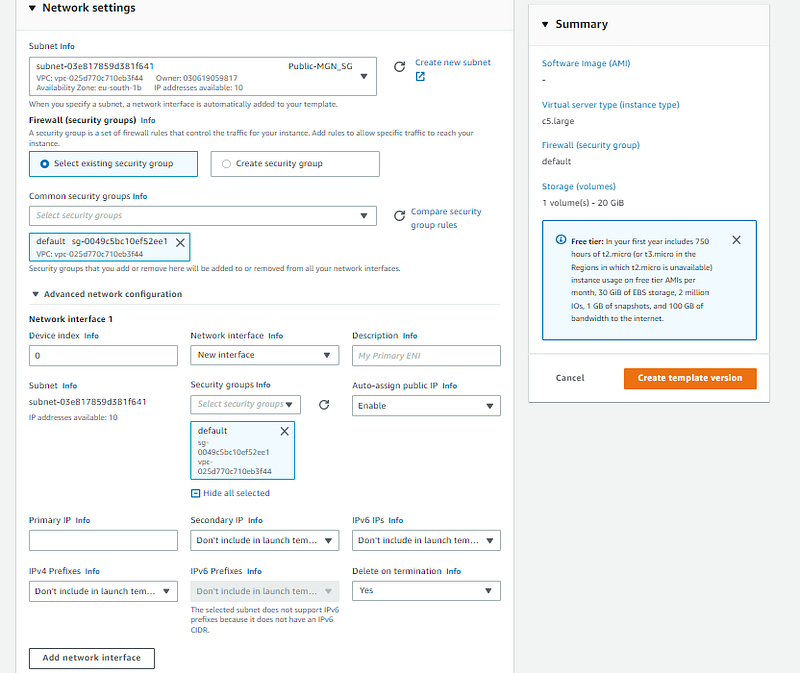
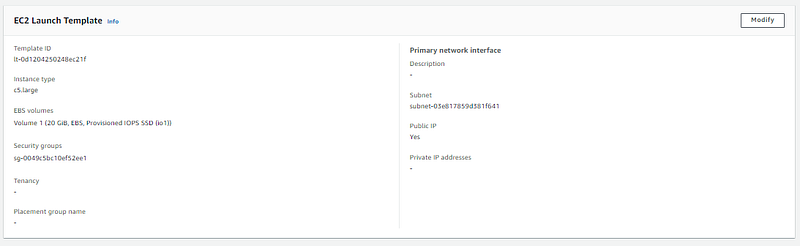
I will add our Public-MGN subnet, and enable public IP address and will also add our Public-MGN_SG security group, I will leave the instance type and other settings as default..
You can change the instance type based on your requirement but remember to edit General launch settings and select OFF for Instance type right sizing.
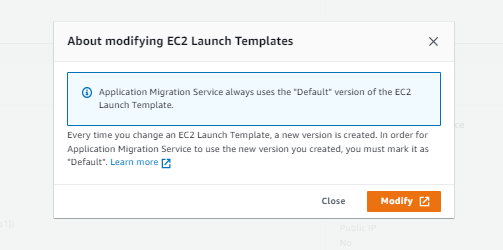
This are the changes i made:
Add Public-MGN subnet,
Enable public IP address
Add Public-MGN_SG security group
Do not add a key pair or mess with the storage. {check documentation — https://docs.aws.amazon.com/mgn/latest/ug/ec2-considerations-1.html}
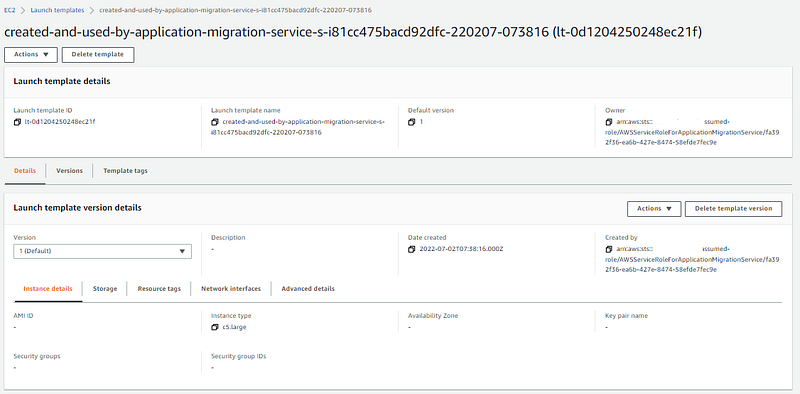
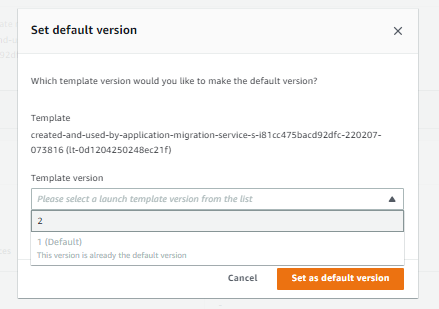
In the Launch template window that shows up, select the launch template ID, and select Actions in the top right corner, and then select the Set default version
In my example i will select 2 as default version so it will reflect at launch template.
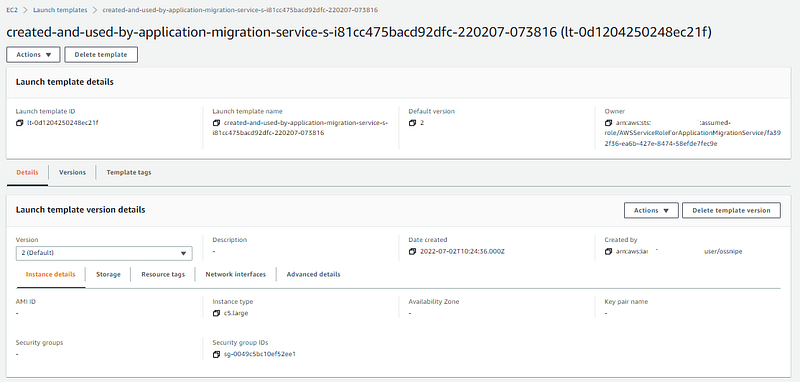
Verify on AWS MGN server console — Launch Template
Launch the Test Instance
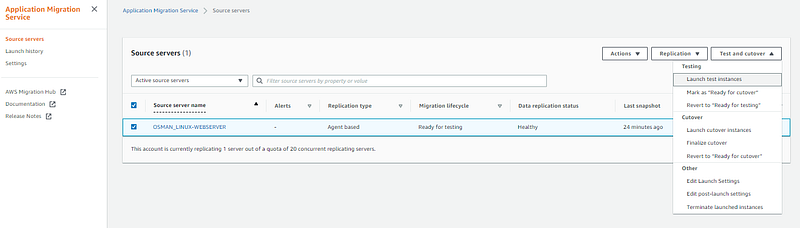
Ensure that the source server is listed as Ready for testing under Migration lifecycle and Healthy under Data replication status.
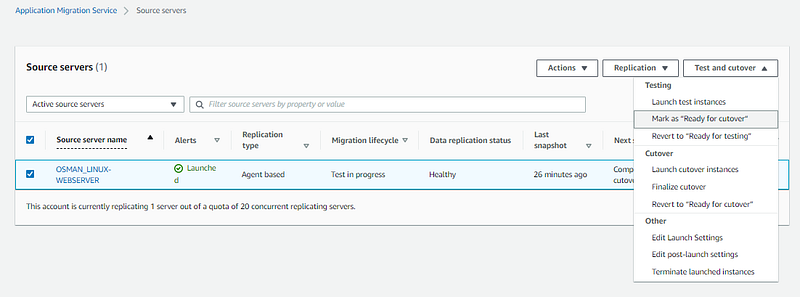
I will select Source servers — click on the server and then select “Test and cutover” — choose Launch test instances.
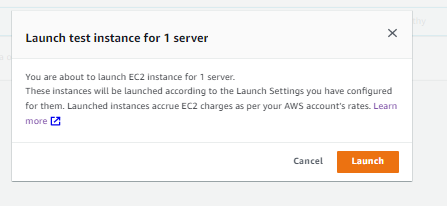
Will get a notification
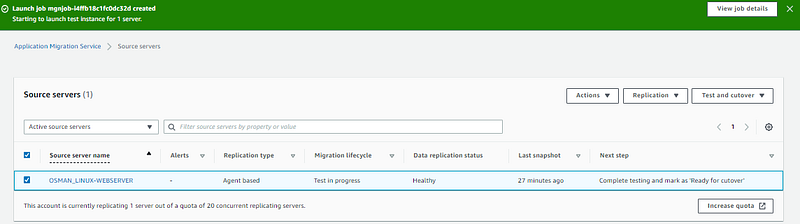
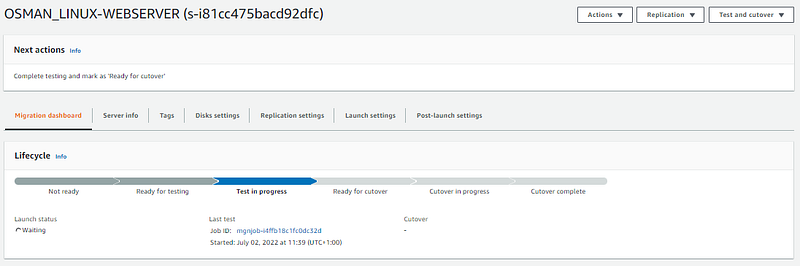
Click on server to view the lifecycle
Click on Launch History to view status of the operation
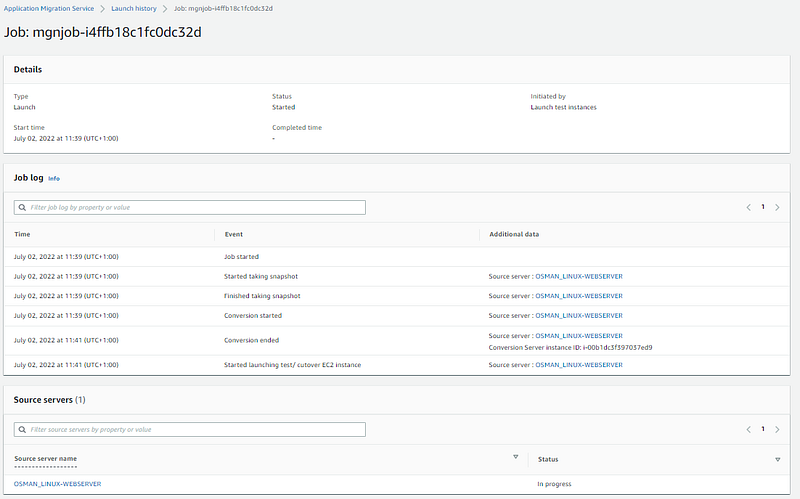
Successfully launched test/ cutover EC2 instance.
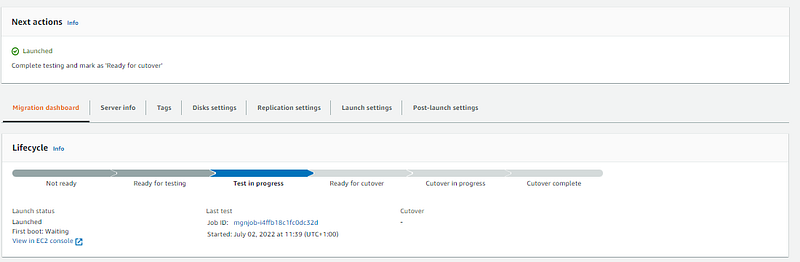
I can click on view Ec2 console to see my webserver

Now click on the server and login via SSH {Linux} or RDP{Windows}. Enter your password or open the public IP address.
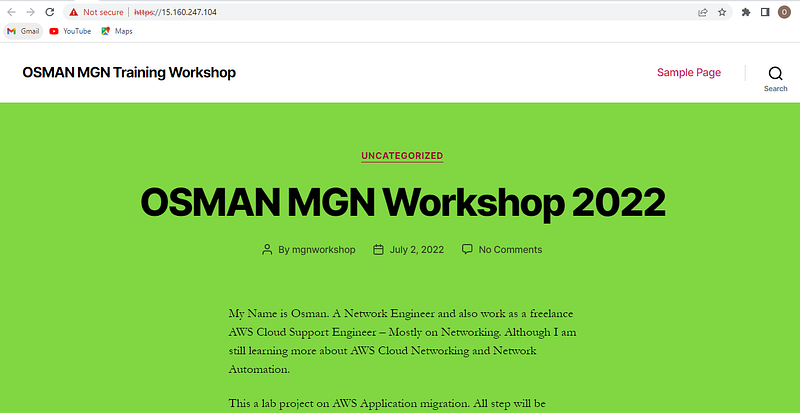
With a successfully launched web browser, I can now Mark as “Ready for Cutover”.
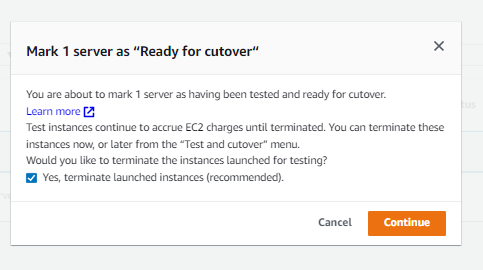
A notification message about terminating the instance and ready for cutover.
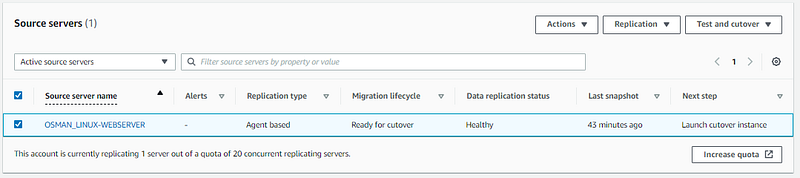
Always go to Launch History to see the process and also select the server and check the lifecycle progress status.
Please Note this:
A Red Stalled Alert: means that data is not flowing from the external server to the Replication Servers [link] and user intervention is required.
A Yellow Lagging Alert: means that data is flowing but if you launch a test or cutover instance now, it will not be fully up to date.
A Blue Launched Alert: means that currently there is an EC2 instance running as a result of launching a test or cutover instance.
Launch the Cutover Instances
Ensure that the source server are listed as Ready for cutover under Migration lifecycle and Healthy under Data replication status.
I will select Source servers — click on the server and select “Test and cutover” — choose Launch cutover instances.
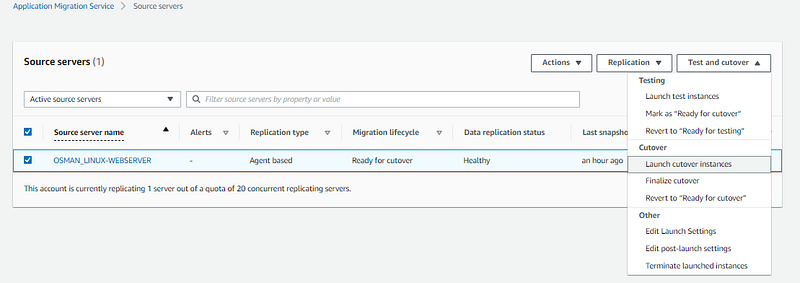
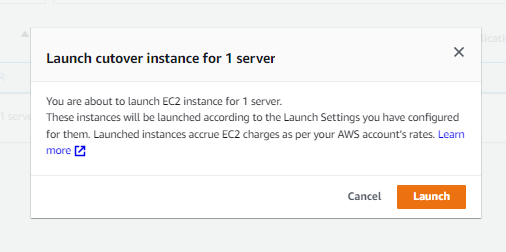
Notification about launching cutover instance
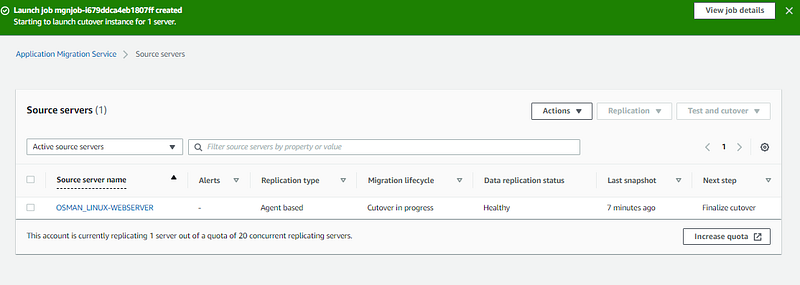
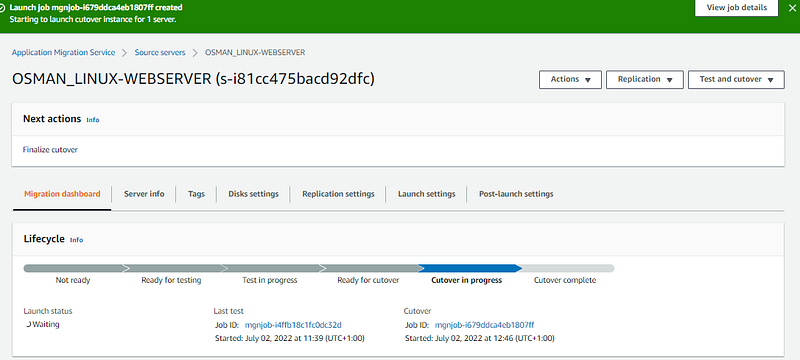
Check the lifecycle and also click on launch job ID to check launch history for the server cutover status, also for troubleshooting incase of error.
Once the job is completed, return to the MGN console page. The Source Server shows Launched Under Alerts.
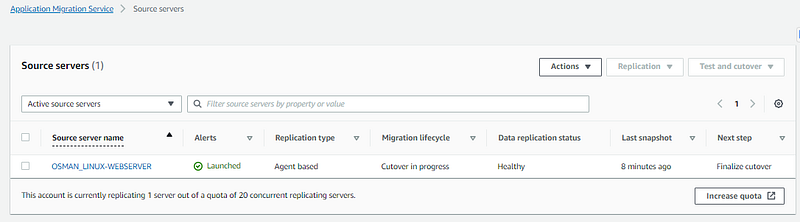
Now the Server has been launched and Migration is completed
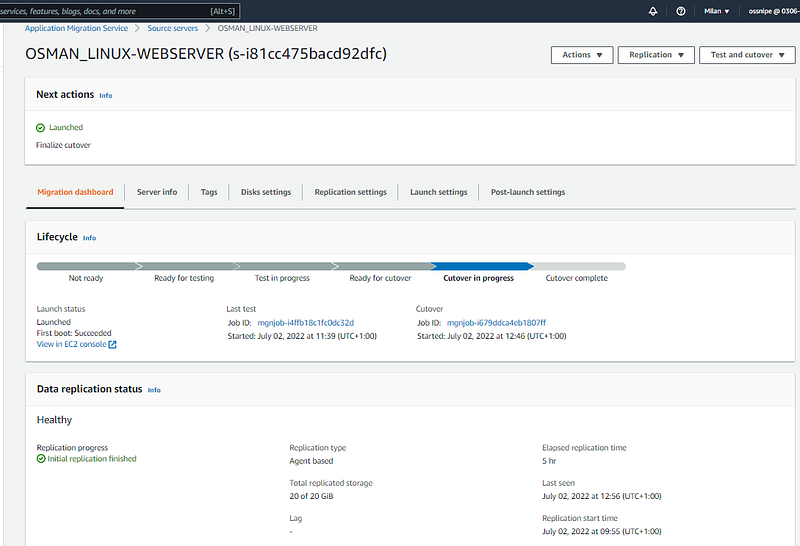
Finalize cutover
Now that i have successfully Launched a cutover, I can now finalize the cutover. This changes the source servers Migration Lifecycle status to Cutover complete. In addition, this terminates the Replication Server and all data replication is stopped and discarded.
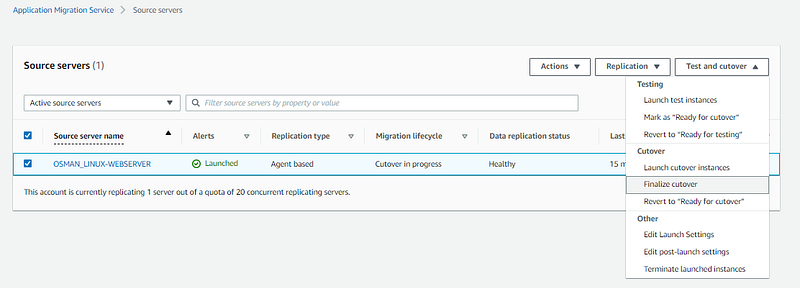
In the MGN console, select the boxes next to the source server that you want to finalize cutover. Select Finalize cutover from the pull down menu under Test and Cutover.
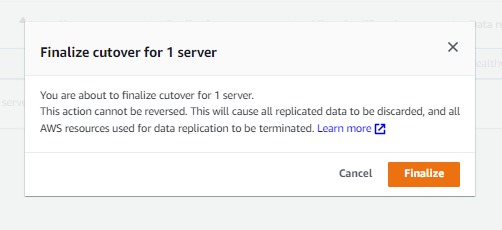
Dialog box about finalize cutover for the server. Will discard the replication server in EC2.
You get a notification message and cutover completed under Migration lifecycle, Disconnected under Data replication status.
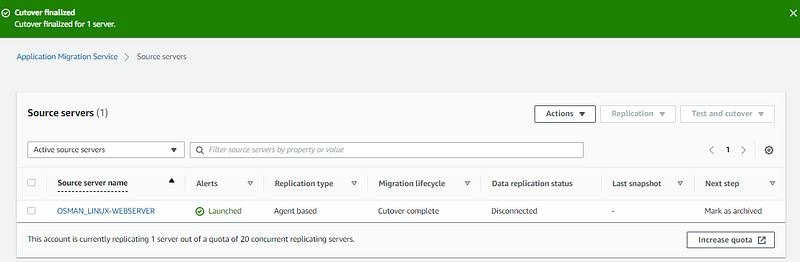
To cleanup, mark the source server as archived. Archiving prevents the servers from being shown in the servers list page.
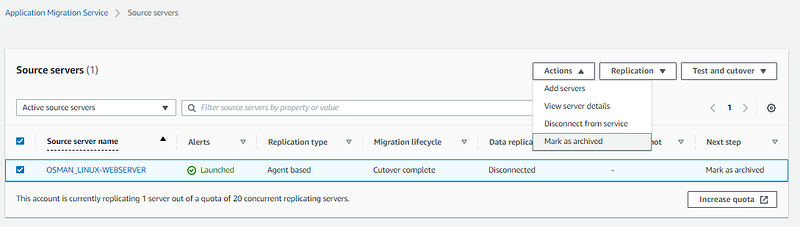
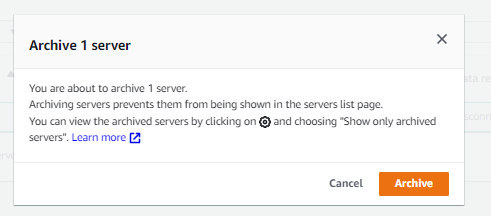
Migration successful !
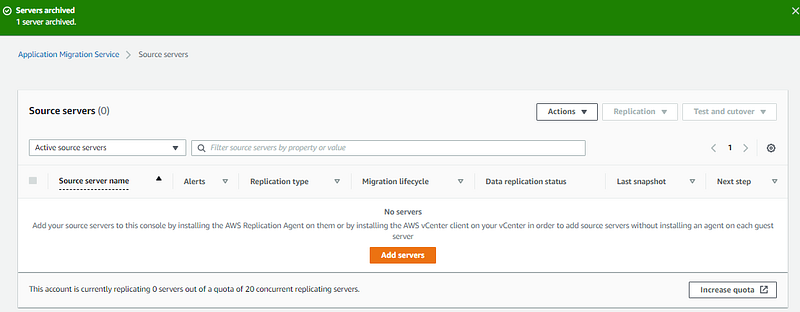
SUMMARY
I have now successfully migrated a server from on-premises (Simulated Cloud environment) to AWS using AWS Application Migration Service (MGN).
Document taht will be of great assistance.
https://docs.aws.amazon.com/mgn/latest/ug/what-is-application-migration-service.html
https://docs.cloudendure.com/#Configuring_and_Running_Migration/Configuring_and_Running_Migration.htm
Further efforts can be performed in the AWS Cloud environment, by creating ami or launch template for auto-scaling and load balancing to the application layer to provide high availability,
offload your media content to Amazon Simple Storage Service (Amazon S3), improve end-user experience with a content delivery network, Amazon CloudFront.
Secure your website using AWS Certificate Manager
Replatforming the Amazon EC2 based mySQL Database to Amazon Relational Database Service (Amazon RDS).
Attach Elastic IP Address.
Attach Key pairs or Iam roles
Lot more.
If have questions about AWS MGN is a good fit for your organization’s needs? Reach out to me on LinkedIn or Twitter.
Member discussion